MyBabyRegistry QuickAdd
Add products from any shopping site with a single click
One-Click Install
Load extension in seconds
Works Everywhere
Chrome, Edge, Brave, Opera
Instant
Beautiful floating button on all products
What is MyBabyRegistry QuickAdd?
MyBabyRegistry QuickAdd is a browser extension that extracts product information from any shopping website and adds it directly to your registry. Beautiful glassmorphic button appears on product pages for instant adding!
This beautiful liquid glass button will appear on product pages
Installation Instructions
Download Extension
Download the extension package (coming soon to Chrome Web Store!):
Open Extensions Page in Chrome
Navigate to:
chrome://extensions/💡 Or click the puzzle icon → "Manage Extensions"
Enable Developer Mode
Toggle the "Developer mode" switch in the top right corner
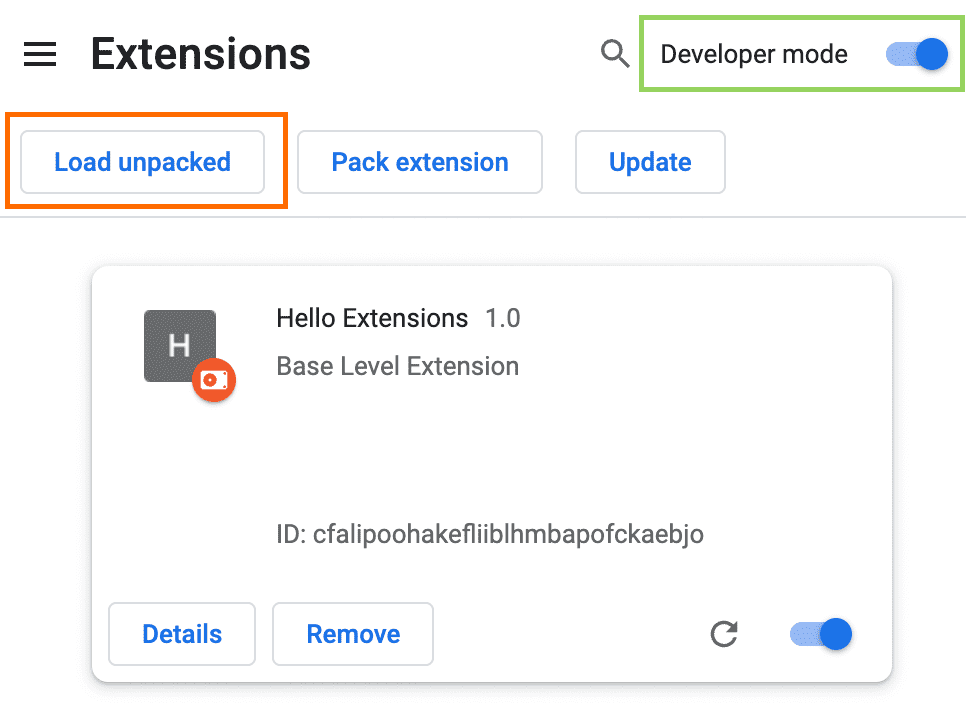
Load Unpacked Extension
Click "Load unpacked" and select the extracted folder containing the extension files
⚠️ Make sure you've extracted the zip file first! Chrome cannot load extensions directly from zip files.
✅ Extension installed! You should see "MyBabyRegistry QuickAdd" in your extensions list
Visit Any Product Page & Click the Button
Go to any product page on supported retailers. The beautiful button will appear:
✨ Features
One-Click Add
From the retailer's product page to your registry in a single click - it's that easy!
Major Singapore Retailers
Works perfectly with Amazon, Mothercare, Motherswork, Lazada , Shopee and more
Smart Extraction
Automatically captures product name, price, and description
Secure & Private
Your login stays secure with encrypted authentication
Saves Product Images
Automatically includes all product photos for your registry
No Tracking or Bloat
Lightweight extension with full privacy - we don't track your browsing
Troubleshooting
❓Button not appearing on product pages?
Make sure the extension is enabled and you're on a product page URL. Reload the page after enabling the extension.
❓"Admin authentication required" message?
Click the extension icon and then click "Sync Login". This will sync your JWT token. Make sure you're logged in first.
❓"Could not extract product data" message?
Some websites have unusual layouts. Check the browser console (F12 → Console) for detailed extraction logs. You can always add the product manually from your dashboard.
❓Extension not loading?
Check that Developer mode is enabled in chrome://extensions/. Click "Reload" on the extension card if you've updated files.
❓Rate limit error?
You can add up to 100 products per hour per endpoint. If you hit this limit, wait a bit and try again.